
Save an article you can already access after login
Article to PDF can extract article text that has already loaded in your tab. It does not sign in for you or unlock unavailable content. This guide uses a synthetic demo session with no credentials, accounts or subscriber material.
Before you start
Use desktop Chrome, Edge or another Chromium browser with Article to PDF installed and access to the HTML article. These instructions use English UI labels. JavaScript must be enabled for the synthetic demo session. Full article export is available during launch. If a launch prompt appears, choose Save Full Article.
Try it step by step
- Open the synthetic members-area example. It initially contains a demo sign-in message, with no article loaded.
- For the failure example, click the extension icon before entering the demo session. The preview contains the sign-in notice instead of the unavailable article. This is an incomplete result, even though a preview appears. Close the preview using its close button.
- Click Enter demo session on the example page. This loads fictional article text without requesting credentials. On a real site, sign in normally and make sure the complete article is visible; wait for any delayed content and images.
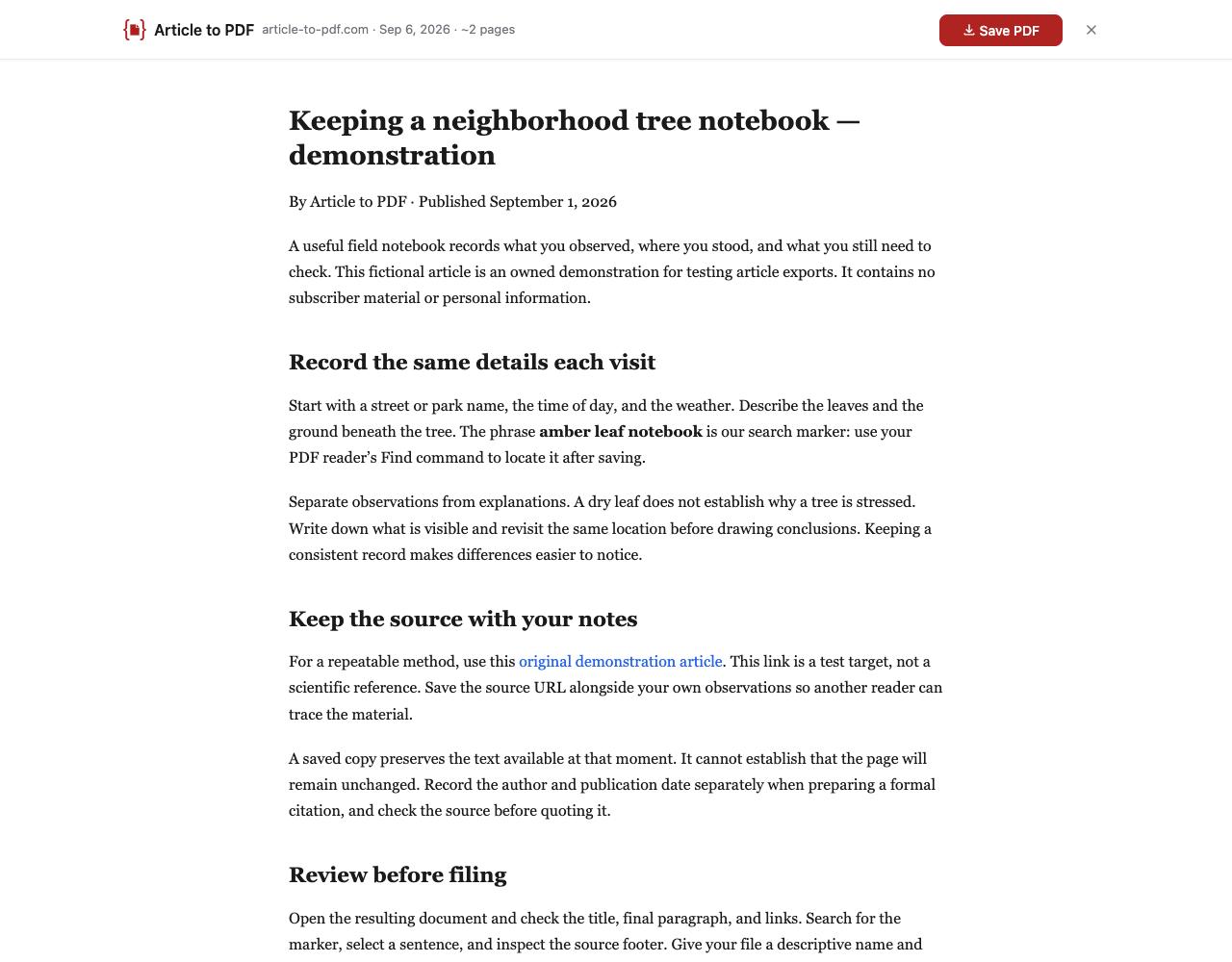
- Click the Article to PDF toolbar icon again. Check that the preview contains the article’s title and final sentence, not a sign-in notice or teaser.
- Click Save PDF, then Save Full Article if the launch prompt appears. Open the download and confirm the complete text. Reloading the demo page resets the session, so you can repeat both cases.
Unavailable content stays unavailable
The screenshot below shows the actual incomplete preview before the demo article loads. We did not save that notice as an article PDF. The fixture simulates loading after login; it is not a secure authentication system and does not test a particular subscription service.
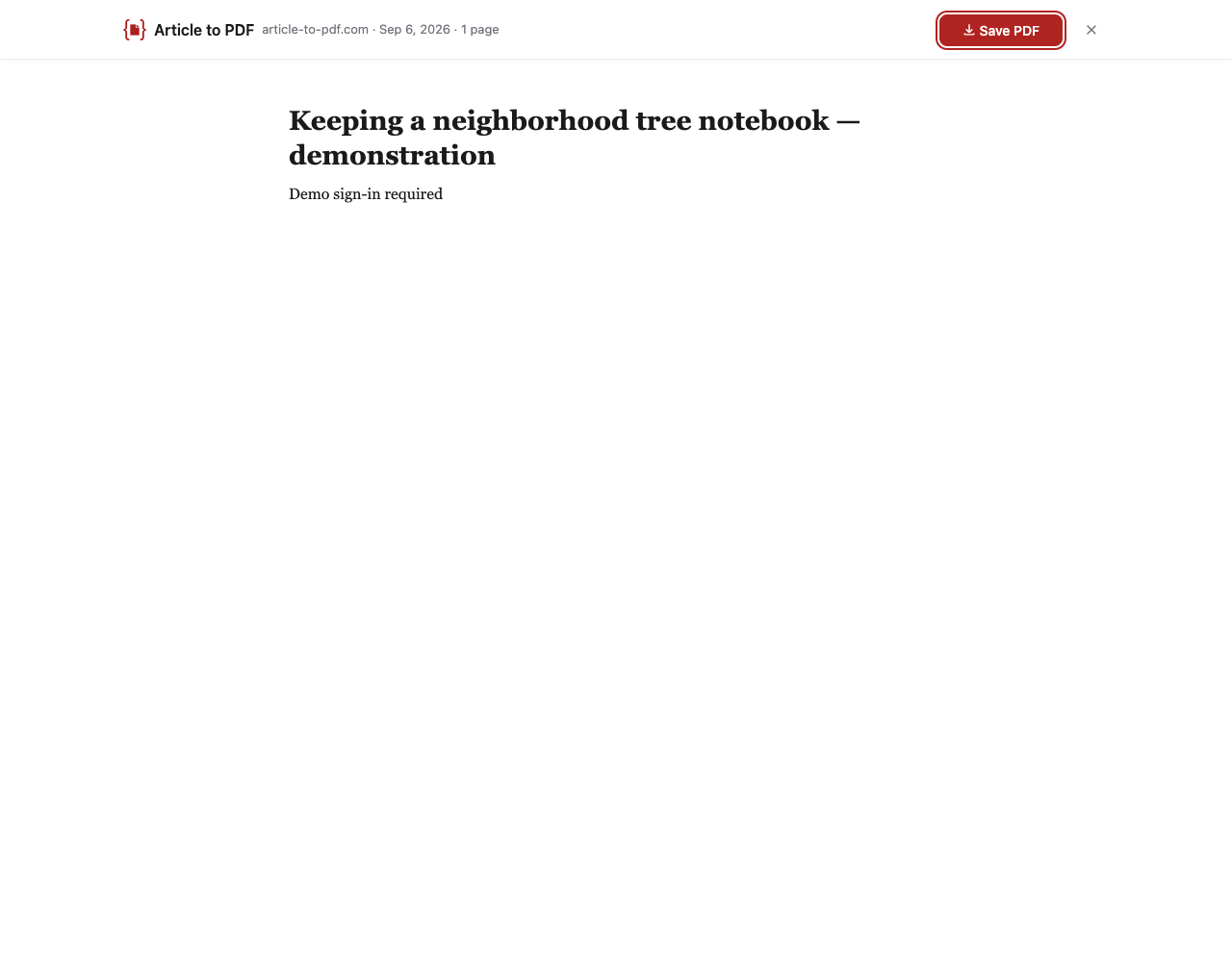
If the preview contains only a teaser
Close it and check whether the full article is actually available in your tab. Sign in through the publisher, open sections you are authorized to read, wait for loading, then retry. A notice can sometimes be extracted as if it were an article, so a successful preview is not proof of completeness. If the content remains unavailable, use the publisher’s permitted download or print option. This extension cannot supply text the page has not made accessible. Follow the publisher’s terms when saving or sharing.
Continue reading
Read our Article to PDF vs Chrome Print comparison to see the differences and download both example PDFs.