
Save an article as PDF without ads
A clean article PDF is useful when a webpage’s navigation and promotions distract from the text. Article to PDF extracts the main article into a preview you can check before downloading. Start with the example below to see what it keeps and removes.
Before you start
Use desktop Chrome, Edge or another Chromium browser with Article to PDF installed and access to the HTML article. These instructions use English UI labels. Wait for text and images to load before opening the extension. Full article export is available during launch. If a launch prompt appears, choose Save Full Article.
Try it step by step
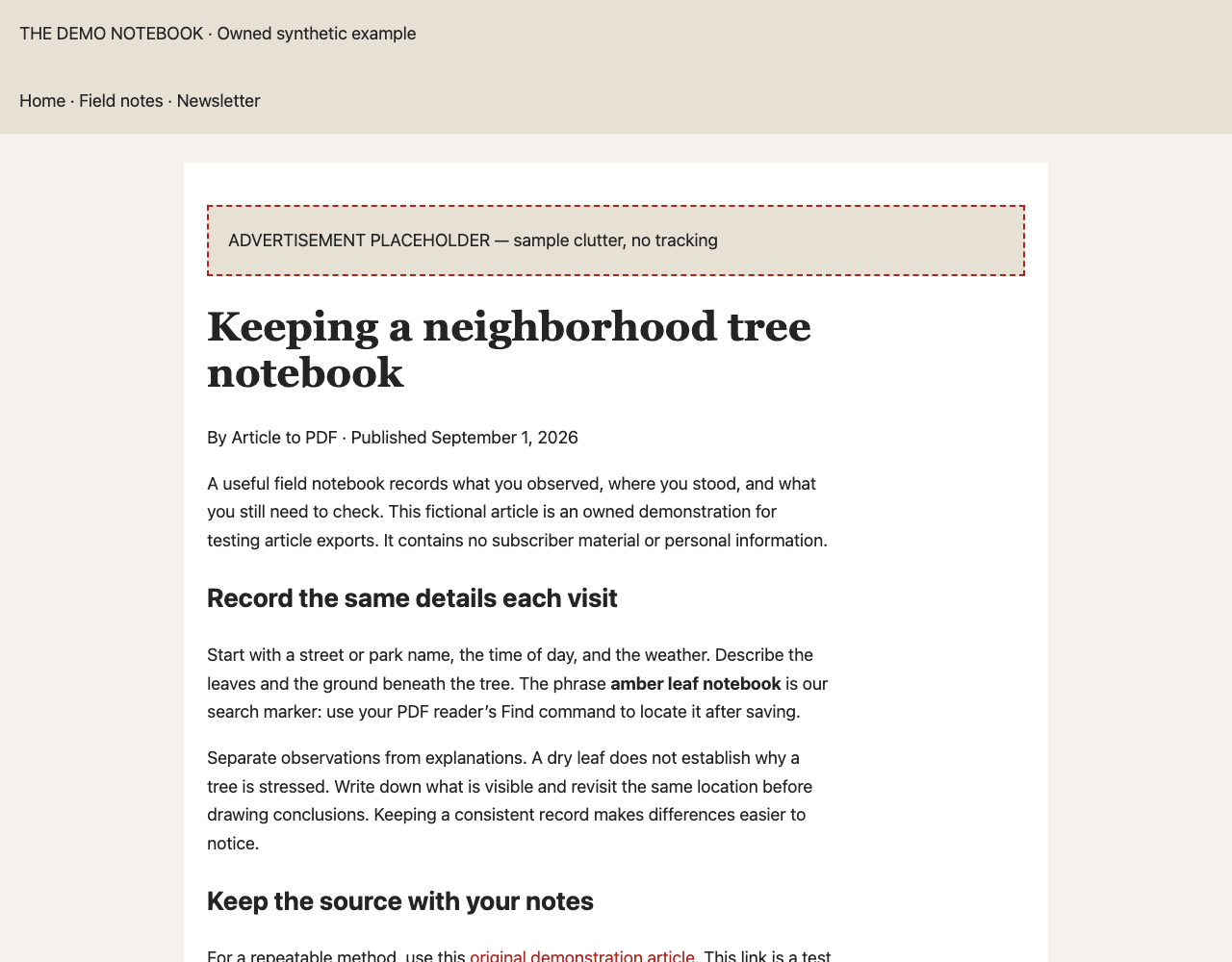
- Open the cluttered demonstration article. Wait for the article and any images to finish loading.
- Click the Article to PDF icon in Chrome’s toolbar. If it is hidden, open Chrome’s Extensions menu and select Article to PDF.
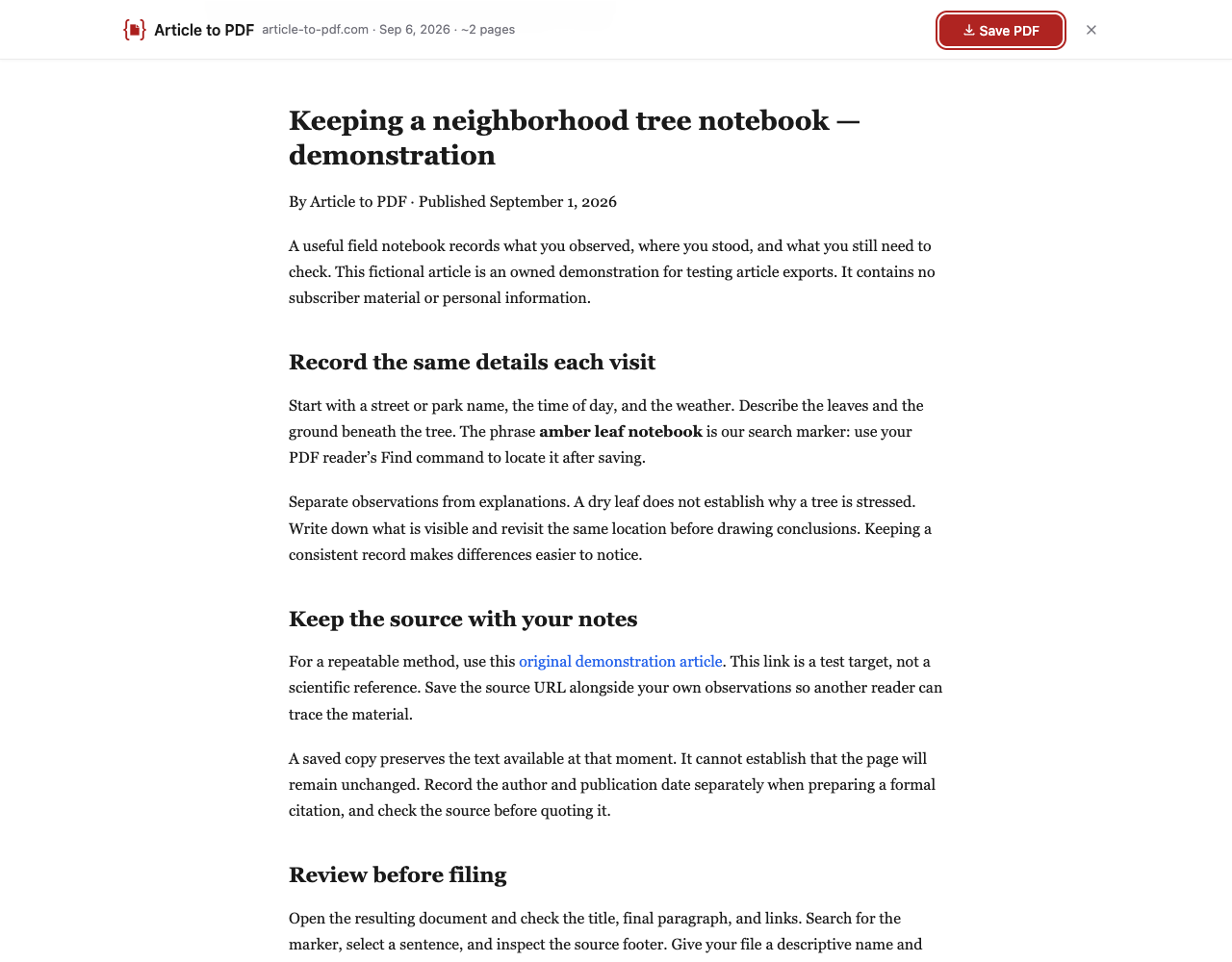
- Wait for the clean preview. Compare its title, paragraphs and final sentence with the original page. The sample advertisement and navigation should be absent.
- Click Save PDF. If you see a full-article prompt, click Save Full Article. Open the downloaded PDF and check its last paragraph.
When Chrome printing is enough
Try Chrome’s Print → Save as PDF first if you want the site’s layout or the site already supplies a clean print view. Print results depend on that site’s print styles. Use the article preview when you prefer extracted reading text, and compare it with the original before saving.
If something is missing
Wait for images or expandable sections to load, close the preview, and try again. Extraction may omit captions, tables or content outside the main article. This workflow does not include block deletion. If extraction fails or loses important context, use the publisher’s print view or Chrome printing and inspect that output.
Continue reading
Read our Article to PDF vs Chrome Print comparison to see the differences and download both example PDFs.