
Article to PDF vs Chrome Print: which should you use?
Choose Article to PDF when you want a clean reading copy of an HTML article. It extracts the article, removes surrounding clutter and formats the text for reading. Choose Chrome’s built-in Print → Save as PDF when you want no extra installation, more print controls, or content outside the main article.
In the example below, Article to PDF saved the complete article on 1 page; browser printing used 2 pages and included the sample ad, navigation and newsletter promotion. Both outputs retained searchable text and a clickable link. Results depend on the page and print settings.
Article to PDF vs Chrome Print comparison table
“Chrome Print” means the browser’s built-in Print → Save as PDF feature, not another extension. Sample results are observations; workflow recommendations are task-specific judgments. Related strengths are not independent votes for an overall winner.
| Task or feature | Article to PDF | Chrome Print → Save as PDF | Better fit and evidence |
|---|---|---|---|
| Remove webpage clutter | Removed the sample advertisement, navigation and newsletter promotion. | Kept all three in the sample printout. | Article to PDF — cleaner article Observed sample |
| Read with article typography | Reformatted the sample into a serif reading layout with consistent paragraph spacing. | Used the website’s typography and layout rules. | Article to PDF — reading-focused layout Observed sample; preference depends on task |
| Keep the sample compact | Saved the complete sample article on 1 PDF page. | Saved the same sample on 2 PDF pages. | Article to PDF — fewer pages here Observed sample; not a universal page saving |
| Review extracted content before export | Shows the extracted title and article in a clean reading preview. | Shows a print preview of the webpage using its print styles. | Article to PDF — inspect article extraction Workflow comparison |
| Save with a preset article format | Click Save PDF; confirm Save Full Article if prompted. No print settings to configure. | Choose Save as PDF and review the available print settings before saving. | Article to PDF — focused saving workflow Workflow preference; no speed benchmark |
| Use an article format across websites | Applies its own reading and print styles to successfully extracted articles. | Each website supplies the styles used for its printed page. | Article to PDF — consistent format by design Design difference; not a multi-site test |
| Start without installing anything | Requires adding the extension from the Chrome Web Store. | Included with Chrome; no extra extension to install. | Chrome Print — less setup Built-in capability |
| Choose print settings | The documented export uses a preset format. | Print dialog offers controls such as page range and layout. | Chrome Print — more control Built-in capability; controls vary by destination |
| Preserve content outside the article | Main-article extraction may omit surrounding content you need. | Prints the page content allowed by the site’s print styles, including the sample navigation and footer. | Chrome Print — broader page context Observed sample plus workflow limitation |
| Search and copy text | Search phrase and selectable article text are present in the example PDF. | Search phrase and selectable article text are also present in the example PDF. | Both — verified in this sample Observed sample; image text is not OCR |
| Keep article hyperlinks | Retained the original demonstration article link as a clickable PDF link. | Retained the same clickable PDF link. | Both — verified in this sample Observed PDF link annotations |
Compare the actual PDFs
Open our fictional neighborhood tree notebook article. It deliberately includes promotional clutter and has no special print stylesheet. This makes the difference easy to inspect; it does not represent every website.
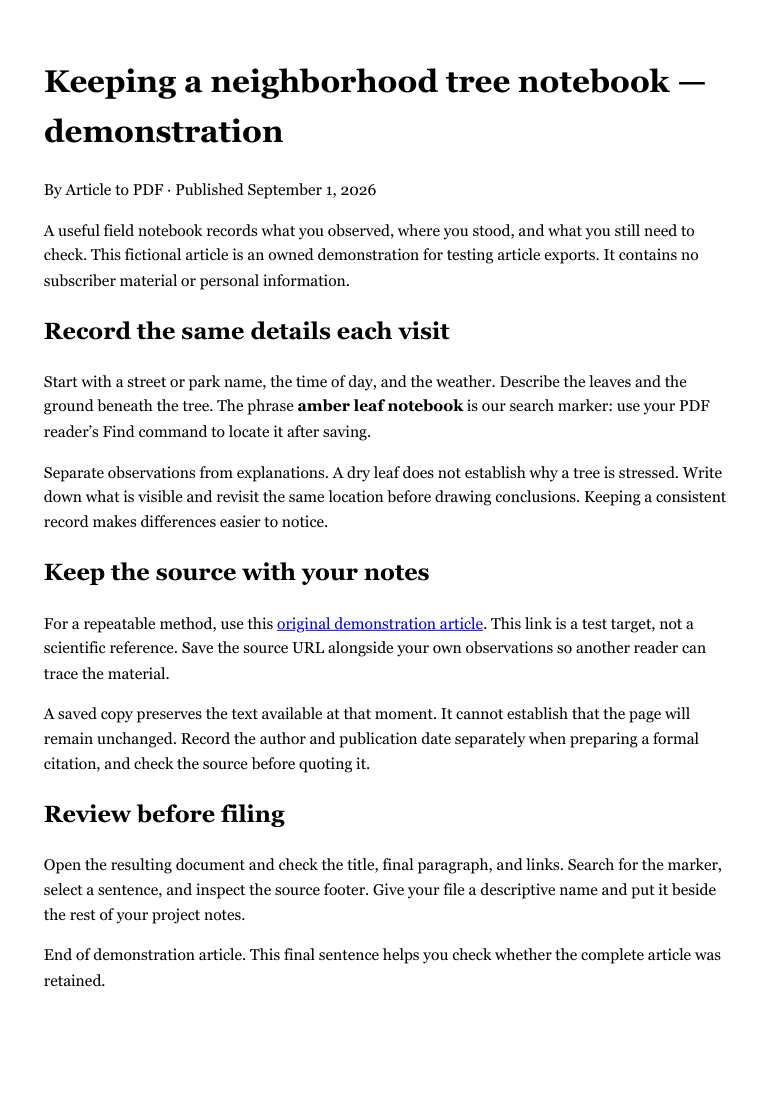
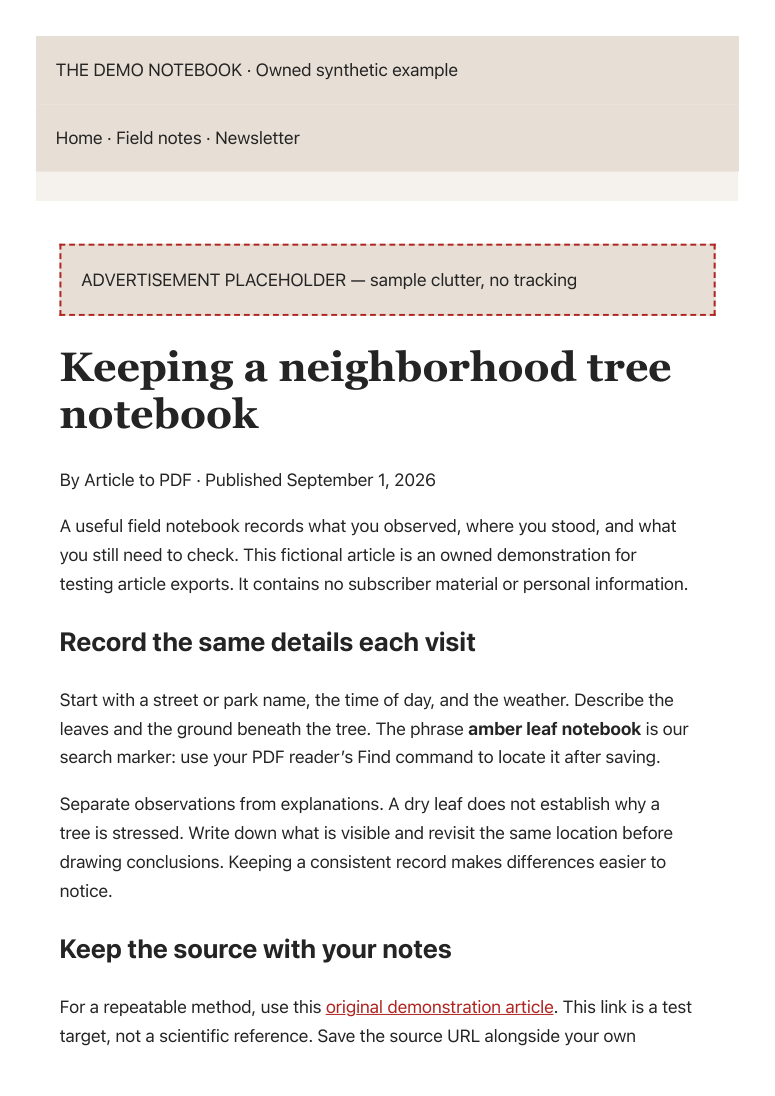
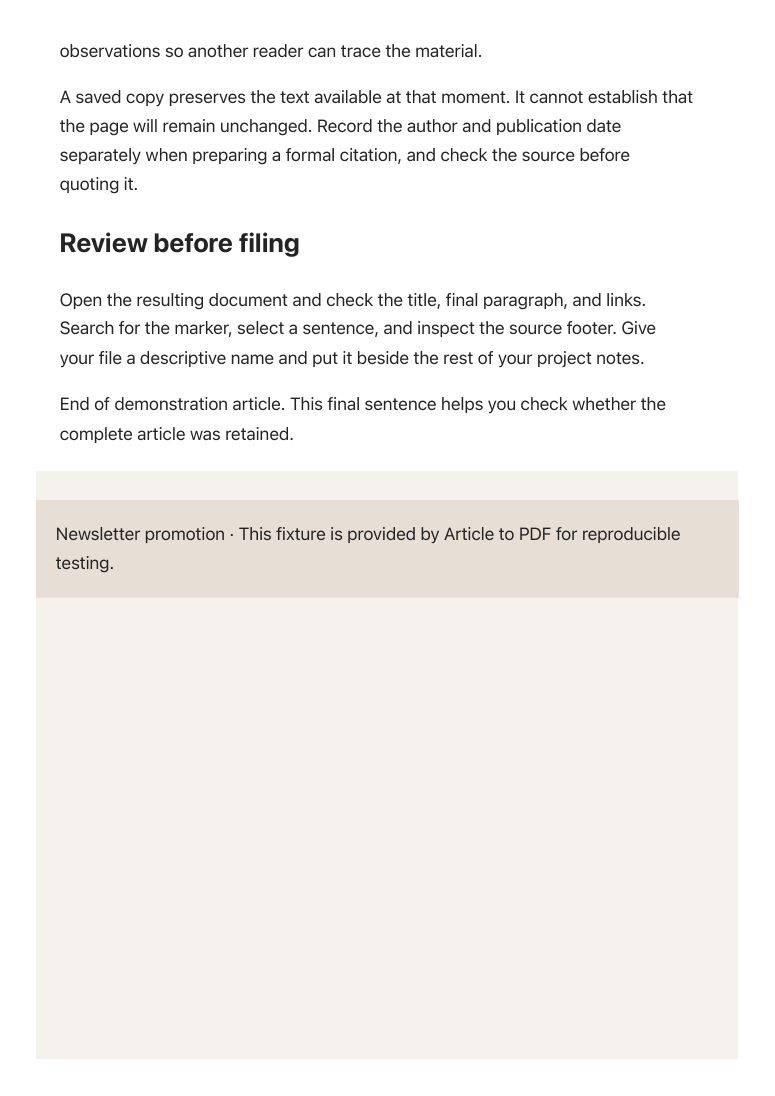
In each PDF, search for amber leaf notebook, check the final sentence beginning “End of demonstration article,” and open the original demonstration article link. All three checks pass in both outputs. The cleanup and layout, rather than exclusive text search or hyperlink support, distinguish Article to PDF here.
When Chrome’s built-in printing is better
- You only need an occasional PDF. Chrome is already installed and requires no additional extension permissions.
- You need the publisher’s print layout or extra page context. A well-designed print stylesheet can already remove ads and produce a clean document. For pages such as invoices, tickets or dashboards, inspect the publisher’s print preview first; article extraction can discard useful material.
- You want to choose print settings. Chrome lets you adjust print options before saving. Use it when the extension’s preset article format does not suit the task.
Chrome printing is not guaranteed to preserve the screen exactly: the site can change or hide content in its print styles. Article to PDF is not guaranteed to extract every image, table, caption or footnote. Compare the output with the source when completeness matters.
How to save the same article with each tool
Article to PDF
- Add Article to PDF from the Chrome Web Store and open the example article.
- Click the extension icon and check the clean article preview.
- Click Save PDF. If the launch prompt appears, select Save Full Article. Open the download and check the last paragraph.
Chrome Print → Save as PDF
- Open the same article and press Ctrl+P on Windows/Linux or Command+P on macOS.
- Choose Save as PDF as the destination. Check the preview and available print settings.
- Click Save, choose the file location and inspect the PDF.
Test scope and limitations
Example date: September 6, 2026. Article to PDF version: 1.2.0. Browser engine: Chromium 145.0.7632.6 on macOS. One owned HTML article was used for both outputs. The extension PDF is an actual extension download. The browser PDF was generated using Chromium’s built-in PDF print engine through Playwright, using the original page and its print styles. It is not a screenshot of Chrome’s interactive print dialog.
Paper and margins were aligned to isolate the content/layout difference: A4 portrait, 0.4-inch margins, scale 100%, backgrounds enabled, browser headers/footers disabled. These are disclosed comparison settings, not a claim about every user’s saved defaults. The 1-page versus 2-page result reflects both extraction and typography. No speed, file-size, OCR, image-break or multi-site benchmark is claimed. Inspect the browser capture settings and PDF content checks.
The downloadable extension example does not automatically include a source URL and save date. Its own article link is clickable. Browser headers/footers were disabled in this comparison, so the examples do not compare automatic provenance. Record the source and save date separately when needed.
Full article export is available during Article to PDF’s launch. Chrome’s built-in PDF saving has no extension subscription. Check current product availability before making a pricing decision; this page does not treat future paid plans as active offers.
Sources and related reading
- Google Chrome Help: Print from Chrome — print shortcuts, destinations and settings.
- MDN: Printing and print stylesheets — why webpage printouts depend on the site’s CSS.
- Save an article as PDF without ads
- Save HTML articles for research
- Save articles you can already access after login
For regular article reading, start with Article to PDF’s clean preview and verify what it retained. When the site’s own print view already gives you the document you need, Chrome Print is a useful choice.