
Save HTML articles for research
Preserve a readable copy of an HTML article, then verify it before adding it to your research folder. The example below lets you test text search, links and provenance yourself. It is a fictional field-notes article, not a scientific source.
Before you start
Use desktop Chrome, Edge or another Chromium browser with Article to PDF installed and access to the HTML article. These instructions use English UI labels. Wait for text and images to load before opening the extension. Full article export is available during launch. If a launch prompt appears, choose Save Full Article.
Try it step by step
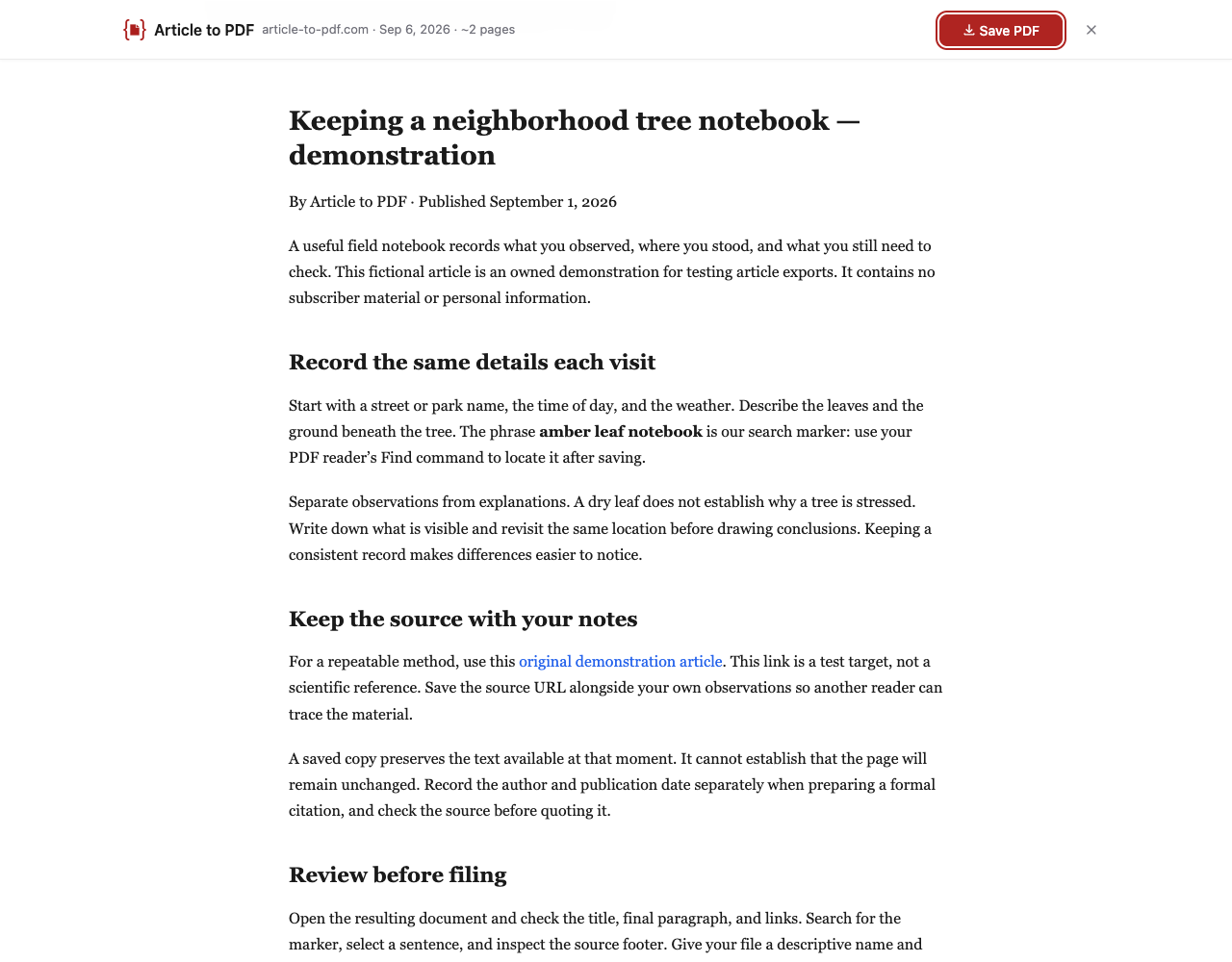
- Open the research demonstration article and wait for the text to load. Note its stated publication date: September 1, 2026.
- Click the Article to PDF toolbar icon. Check the preview title, byline, linked paragraph and final sentence, then click Save PDF. If the launch prompt appears, choose Save Full Article.
- Open the PDF in your reader. Use Find (Ctrl+F or Command+F) for amber leaf notebook. Select and copy a sentence to check that the text is usable.
- Click original demonstration article in the PDF. It opens the original article on article-to-pdf.com. Your PDF reader may ask before opening an external link.
- Record the source URL and your save date in a separate research note. The example PDF does not include them automatically. Use the original article URL as the source and record the date you save your copy. Store the author and publication date separately.
Save date is not publication date
A save date records when you preserved the page, not when the author published or revised it. The example article’s September 1 publication date is part of its text. The downloadable example does not include an automatic source URL or save date. Record them yourself; the article’s own demonstration link is retained, but that is not an automatic source footer.
Research limitations
This is not a citation manager, an archival guarantee, or an extractor for existing PDF papers. Keep bibliographic details and citations in your own workflow. Text search works for retained text, not words embedded in images. Check figures, tables, footnotes and the last paragraph against the source; use the original download or publisher’s print view when extraction loses material.
Continue reading
Read our Article to PDF vs Chrome Print comparison to see the differences and download both example PDFs.